
Being able to determine when the last time a computer was restarted is a task that every support person needs to pull off at one time or another. Windows has several methods in place for finding restart information, but most of these solutions are difficult to use when querying multiple computers and don’t provide historical information. In this article, we’ll review the options available and then look at how to get the information you need via PowerShell.
Get Reboot History time from Windows
There are several ways to get the last restart time of a computer, but not all of them are equally practical, especially when you need flexibility or scale. Below are two common approaches, along with their strengths and limitations.
Method 1: Built‑in Windows utilities (quick, one‑off checks)
Windows includes a few native tools that can surface restart information, which can work well for occasional, local checks. For example, the SystemInfo utility reports the last boot time in a readable format, though the output needs to be filtered to isolate the relevant detail:
systeminfo | find "System Boot Time"
System Boot Time: 12/17/2019, 9:46:08 PM
Other options include the Net Statistics command, reviewing NIC statistics, or checking uptime in Task Manager. These approaches are fine for one‑off requests, but they aren’t designed for automation, remote collection, or gathering data across many systems.
Method 2: Programmatic access (recommended for scripting and scale)
Restart time can also be retrieved programmatically through WMI. Older tools like WMIC technically work, but their output is difficult to parse and they rely on legacy tooling:
wmic os get lastbootuptime
LastBootUpTime
20191217214608.500331-300
For modern environments, Microsoft recommends using Get-CimInstance instead of WMIC or Get-WmiObject. This approach is supported in PowerShell Core, produces cleaner output, and is better suited for scripting and remote access:
(Get-CimInstance Win32_OperatingSystem).LastBootUpTimeWhen you need restart data from multiple or remote machines, or want to integrate uptime checks into scripts and workflows, this method is far more reliable and scalable than the built‑in, manual options.
Using PowerShell to Query Windows Event Logs
One overlooked spot for restart information is the Windows Event Logs. The Windows System Event Log contains detailed records of reboot and shutdown activity, including user-initiated and unexpected events. The events and their corresponding ID’s keep track and document all power up, power down and uptime situations related to runtime and power cycling. The trick is to know what to look for and how to turn the data into something useful and easy to work with.
There are five event IDs that are reserved for power up, power down and uptime events.
Event ID | Description |
1074 | System has been shutdown by a process/user |
6005 | The Event log service was started |
6006 | The Event log service was stopped |
6008 | The previous system shutdown at time on date was unexpected |
6013 | The system uptime is number seconds |
Event ID 1074 documents shut down events. Event ID’s 6006, 6008 and 6013 document events related to a power cycle and may or may not be useful depending on your particular situation. Pairing the 60xx events with 1074 gives a picture of how long restart operations took to complete. 6008 is important for recognizing when a computer may have blue screened or lost power unexpectedly. 6013 is not related to power cycle events, instead, it documents how long a computer has been running since the last restart.
We can build a query of this information using some simple PowerShell code. Let’s start with the 1074 events and see what that looks like.
Step 1: Query Event ID 1074
Use the following command to retrieve user-initiated restart and shutdown events from the System log:
Get-WinEvent -FilterHashtable @{LogName='System'; Id=1074} | Format-Table -WrapWith one line of code, we can quickly pull all restart information from the event logs and clearly see when the PC was restarted. This command returns all matching entries in the System event log.
Note: Keep in mind that this log is from a newly built PC with only a few log entries. On older systems, the number of results returned may be significantly larger.
Step 2: Limit Results Using –MaxEvents
If the PC being queried is a year or two old, the number of matching events returned may be lengthy. To reduce output and focus on the most recent entries, use the -MaxEvents parameter.
Get-WinEvent -FilterHashtable @{LogName='System'; Id=1074} -MaxEvents 1 | Format-Table -WrapStep 3: Query Multiple Computers
Below is the PowerShell script to get the last reboot time for multiple computers. Define a list of computer names and loop through them using the -ComputerName parameter.
$computers = "Server1","Server2"
$computers | ForEach-Object {
    Get-WinEvent -ComputerName $_ -FilterHashtable @{LogName='System'; Id=1074} -MaxEvents 2 | Format-Table -Wrap
}
Step 4: Query Additional Reboot-Related Event IDs
Now, let’s add in those other event IDs and see what that looks like for just one computer. I am using 1074, 6005, 6006, and 6008 event ID's in this example.
Get-WinEvent -FilterHashtable @{LogName='System'; Id=1074,6005,6006,6008} -MaxEvents 6 | Format-Table -WrapThe results of the PowerShell query show different events that occurred at different times with enough detail to understand what happened for each event.
However, the results are grouped by the ProviderName. The results become more confusing if we pull results from multiple computers. It would be easier to understand what occurred on a machine and when it happened if the events were displayed in sequential date order rather than grouped by ProviderName. To do this, we must write the events to a new object so we can bypass the grouping of events by ProviderName.
Step 5: Create a Custom Object for Chronological Output
To avoid grouping by ProviderName and instead sort events sequentially, write the results to a custom object and sort by date before displaying.
PS C:\> Get-WinEvent -FilterHashtable @{logname = 'System'; id = 1074} | Format-Table -wrap
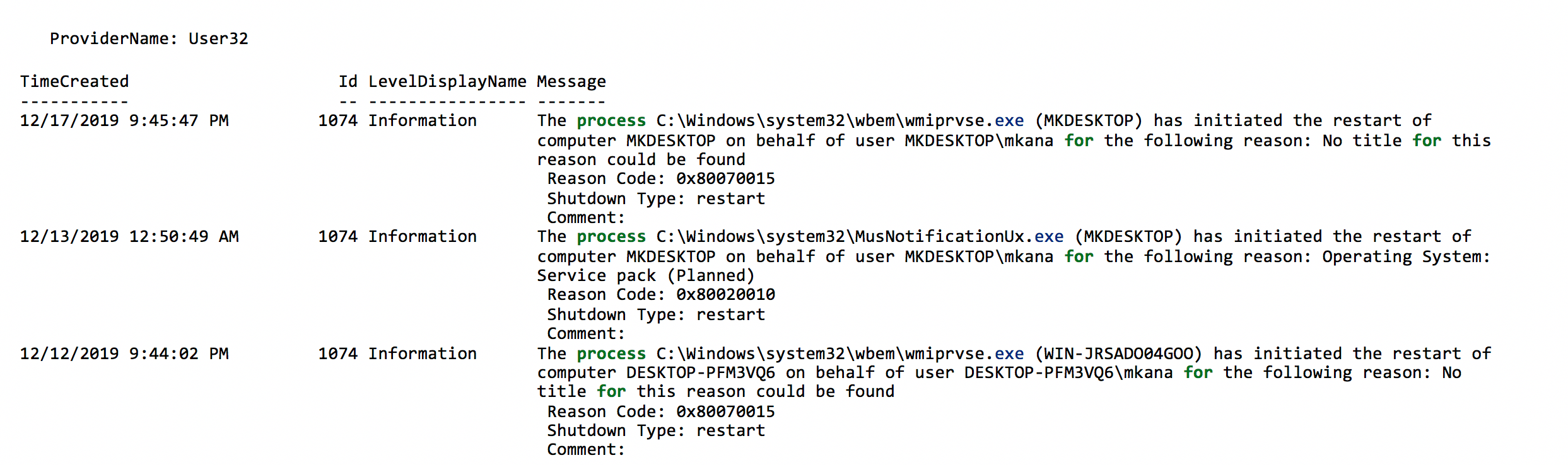
With one line of code, we can quickly pull all the restart info from the logs and see a clear picture of when the PC has restarted. Keep in mind that this log is from a newly built PC with only a few log entries. The PowerShell command returns ALL matching entries in the event log. If the PC being queried is a year or two old, the list of events returned can be lengthy. Use the -MaxEvents parameter to slim down the list of events.
PS C:\> Get-WinEvent -FilterHashtable @{logname = 'System'; id = 1074} -MaxEvents 1 | Format-Table -wrap

If we want to get the events from multiple computers, then it’s just one more line of code:
PS C:\> $computers = "Server1","Server2"
PS C:\> $computers | ForEach-Object {Get-WinEvent -ComputerName $_  -FilterHashtable @{logname = 'System'; id = 1074} -MaxEvents 2 | format-table -wrap}
Now, let’s add in those other event IDs and see what that looks like for just one computer. You can choose whichever events you want. I am using 1074, 6005, 6006, and 6008 in this example.
PS C:\> Get-WinEvent -FilterHashtable @{logname = 'System'; id = 1074, 6005, 6006, 6008} -MaxEvents 6 | Format-Table -wrap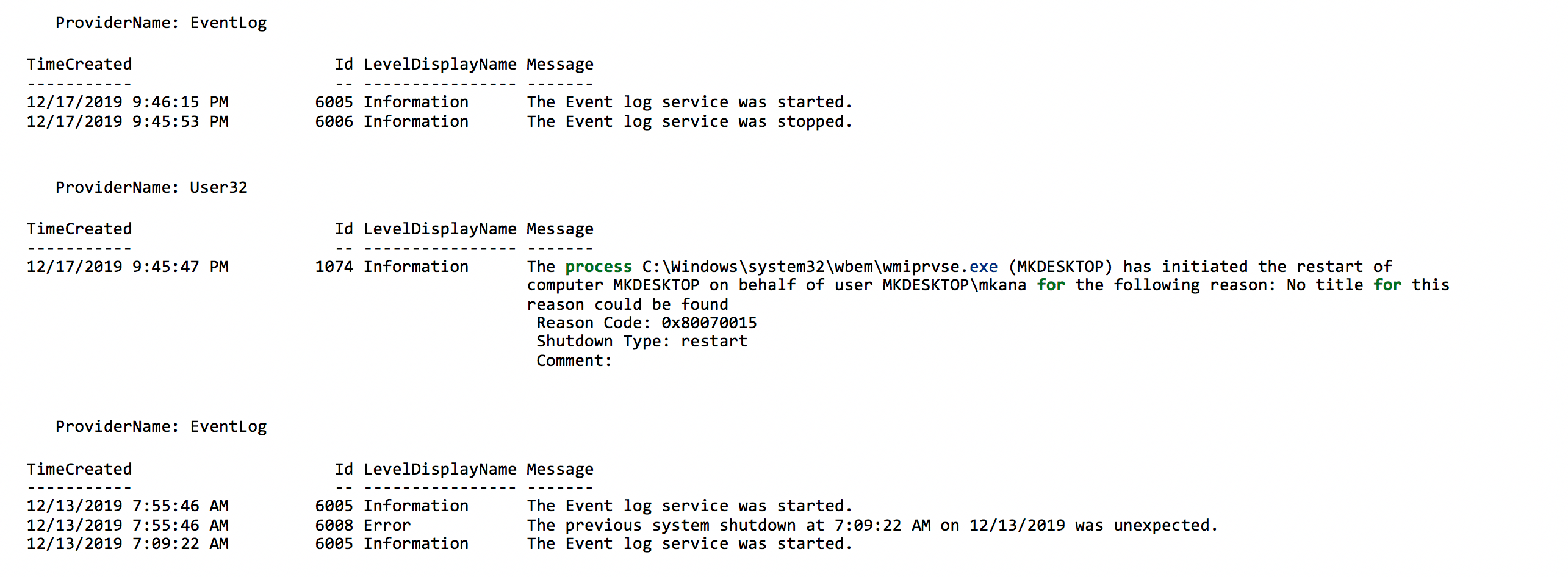
The results of the PowerShell query show different events that occurred at different times with enough detail to understand what happened for each event. However, the results are grouped by the ProviderName. The results become more confusing if we pull results from multiple computers. It would be easier to understand what occurred on a machine and when it happened if the events where displayed in sequential date order rather than grouped by ProviderName.
To do this, we must write the events to a new object so we can bypass the grouping of events by ProviderName. It sounds difficult, but it’s not once you see it in action. This is a good time to switch from trying to write one or two lines of code and instead saving the code as a script so it can so it can be a repeatable action.
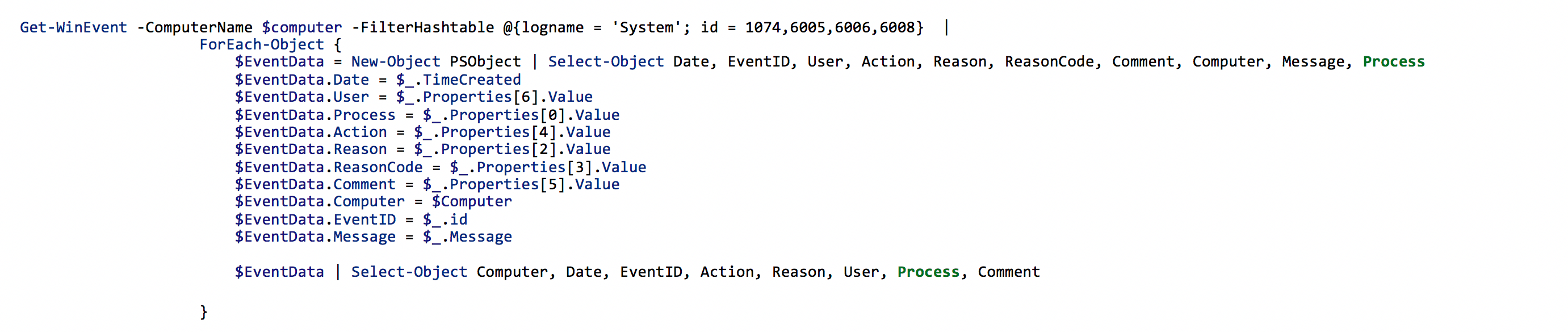
How Event Data Is Mapped to a Custom Object
You can see in the section of code above that we are creating a new object called $EventData which contains the fields Date, EventID, User, Action, Reason, ReasonCode, Comment, Computer, Message, Process. Those fields are the same names as the fields in the event log data.
Once the object is created, we need to map the event ID data fields from the event log to the $EventData fields. All this does is tell PowerShell where to write the data in our new object when it reads a log entry from the event log.
Get-WinEvent -ComputerName $computer -FilterHashtable @{logname = 'System'; id = 1074,6005,6006,6008} | ForEach-Object {
$EventData = New-Object PSObject | Select-Object Date, EventID, User, Action, Reason, ReasonCode, Comment, Computer, Message, Process
$EventData.Date = $_.TimeCreated
$EventData.User = $_.Properties[6].Value
$EventData.Process = $_.Properties[0].Value
$EventData.Action = $_.Properties[4].Value
$EventData.Reason = $_.Properties[2].Value
$EventData.ReasonCode = $_.Properties[3].Value
$EventData.Comment = $_.Properties[5].Value
$EventData.Computer = $Computer
$EventData.EventID = $_.id
$EventData.Message = $_.Message

$EventData | Select-Object Computer, Date, EventID, Action, Reason, User, Process, Comment
}
Mapping Event Properties:
$EventData.User = $_.Properties[6].Value
$EventData.Process = $_.Properties[0].Value
$EventData.Action = $_.Properties[4].Value
$EventData.Reason = $_.Properties[2].Value
$EventData.ReasonCode = $_.Properties[3].Value
$EventData.Comment = $_.Properties[5].Value
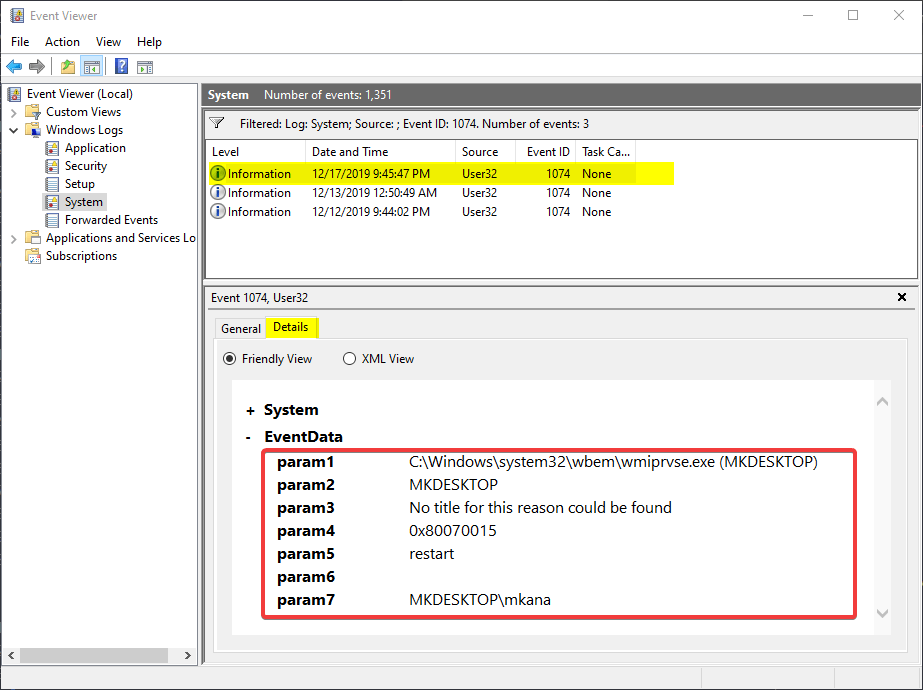
These fields hold the data from our 1074 events. If you look at one of the earlier examples, you’ll notice there is a message field and within the message data there are extra fields of data called Reason, Reason Code, Shutdown Type and Comment. That data is saved in an array, which is nothing more than a table with a bunch of rows. To pull the data out, we need to separate all those rows into different fields in our $EventData object we created.
The numbers in brackets after the word properties represents the row number in the table. How did I figure that out? The information is in the event log, it’s just not obvious at first glance. Notice the fields in the screenshot below named Param1 through Param7. I mentioned earlier that the data is contained in an array. The rows in an array each have a number ofr an “index”. The data in the array can be accessed if what number row the data is in. The index in an array always starts with zero, so the array index for our data is 0-6 and that index represents Param1 through Param7.
If you’re having any issues following along, I have saved all the code as a function called Get-RestartInfo on my GitHub repo which simplifies retrieving PowerShell reboot history from one or multiple computers. The function uses the same code in this article plus a few extra bits to provide help information. To run the function, you load it into memory and then call the function like this:
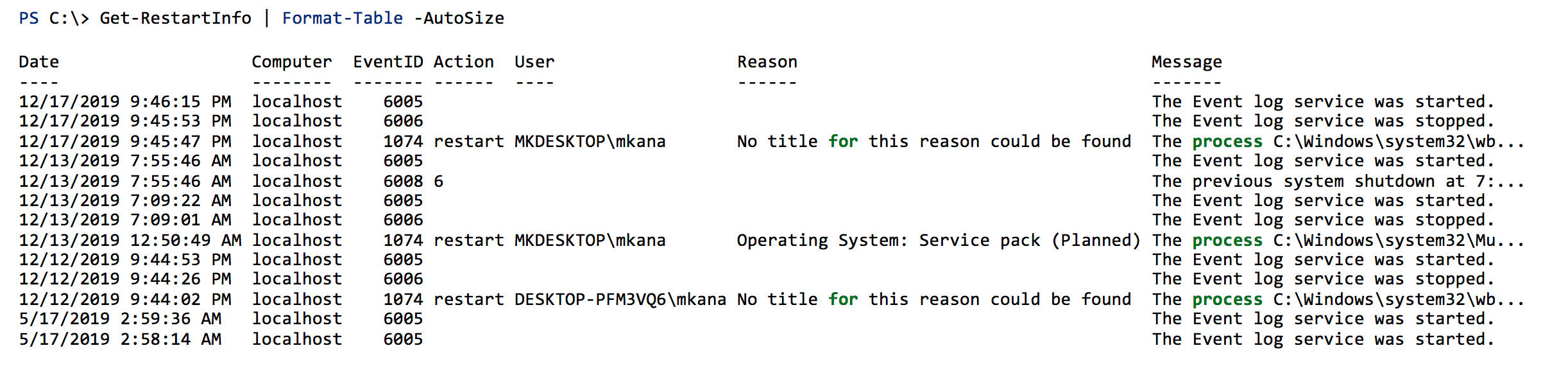
The output in now listed in sequential order by date. Those extra event id’s help tell a story about what happened and how long restarts took to complete. This is also a good time to mention that sometimes there is too much data to show in a PowerShell console. When those situations come about, you can use Out-Gridview to get a better view of your data.
The same command above with Out-GridView looks like this:
PS C:\> Get-RestartInfo | Out-GridviewThe results look like this:

Using PowerShell to get eventlog data is useful when you need to see more than just the most recent restart information. What you have seen here is how to query the event logs using one line of code to retrieve the restart information for a computer. We then built on that single line of code by getting the restart information from more than one computer. To query the multiple computers only required one additional line of code. We then made our own script to better display the output of the results.
By saving our code as a script, we’re able to re-run the query and not have to retype all the syntax. You can make your own version of this script and tailor the output exactly how you like or download and edit my code.
FAQ
How can I check if a PC has been rebooted recently using PowerShell?
You can check whether a PC has been rebooted by querying the Windows System event log for reboot‑related Event IDs, such as 1074 (user‑initiated restart) or 6008 (unexpected shutdown). Using Get-WinEvent allows you to identify when a reboot occurred and whether it was planned or unexpected.
How do I calculate the time since the last reboot using PowerShell?
The easiest way to calculate time since the last reboot is by querying the operating system’s last boot time using PowerShell. By retrieving the LastBootUpTime property from Win32_OperatingSystem, you can subtract that value from the current date to determine system uptime in hours or days.
What is the difference between Event ID 1074 and Event ID 6008 in Windows?
Event ID 1074 indicates a planned shutdown or restart initiated by a user, process, or application, often including details such as the reason and user account. Event ID 6008, on the other hand, indicates an unexpected shutdown, such as a power loss, system crash, or blue screen, and is useful for identifying abnormal reboots.
How can I view reboot history instead of just the last reboot?
To see reboot history, you can query the Windows System event log for multiple reboot‑related Event IDs (including 1074, 6005, 6006, and 6008). Reviewing these events chronologically provides a fuller picture of restart patterns, system uptime, and unexpected outages over time.
How can I check reboot history for multiple computers using PowerShell?
PowerShell allows you to query reboot events remotely by specifying multiple computer names with the -ComputerName parameter. Looping through a list of machines lets you collect reboot history from across your environment, making it easier to troubleshoot issues or validate patching and maintenance activity.